

Knowledge & Tools
A coding agent that only knows your open files is a general-purpose assistant. AETHER Coder also draws on what your organisation knows and what your platform can do — and it does that without you configuring anything in Visual Studio Code.
There are three separate things here, and telling them apart is the single most useful piece of understanding in this documentation.
| Where it lives | What it is | Who sets it up |
|---|---|---|
| Your AETHER agent | The knowledge base it searches | Your platform administrator, in AETHER |
| Your AETHER agent | The MCP tools it can call | Your platform administrator, in AETHER |
| Your machine | MCP servers added in the editor | You, in the extension |
The first two run server-side during a coding task. The third runs locally. They are not the same feature and they are not configured in the same place.
Your organisation's knowledge
While it is working, the agent searches your AETHER agent's knowledge base. This happens on the platform, as part of answering your message, and there is nothing to install or switch on in the editor.
This is how the agent knows things it could not possibly infer from your repository: your internal architecture standards, the reason a deprecated service is still running, the naming scheme your platform team agreed last year, the runbook for a system that lives in another repository entirely.
The practical consequence is that improving the answers is an AETHER task, not an editor task. When someone adds a document to the agent's knowledge base, every developer using that agent picks it up on their next message — nobody reinstalls anything and nobody is running last quarter's standards. See Adding Knowledge Sources.
Your platform's tools
The MCP tools attached to your agent in AETHER are equally available during a coding task, and equally invisible from the editor. If your agent can query a ticketing system, look up a customer record or read a service catalogue, it can do those things while it codes.
That is what makes a request like "implement the change described in ticket PROJ-412" work: the agent fetches the ticket through a platform tool, then writes the code. Again, nothing is configured in Visual Studio Code — the tool belongs to the agent. See Connecting MCP Tools.
Because these tools run on the platform, they inherit the platform's governance: the same credentials, the same permissions and the same audit trail as every other use of that agent.
Tools you add in the editor
Separately, the extension has its own MCP Servers view in the panel, where you can add servers that run on your own machine.
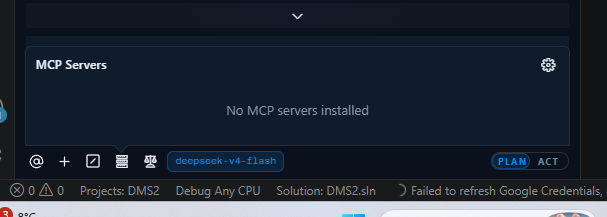
It has two tabs:
| Tab | What it is for |
|---|---|
| Remote Servers | Connect to a server by URL rather than running it locally. |
| Configure | Edit the extension's server configuration directly. |
The configuration is stored in a cline_mcp_settings.json file belonging to the
extension, which the Configure tab opens for you.
These servers are yours. They start on your machine, run with your permissions, and are visible only to you. They are useful for developer-local things — a database you have on your laptop, a design tool you personally use, a scratch integration you are prototyping before proposing it to the platform team.
Note: these are two different things. Tools configured on the agent in AETHER run server-side, apply to everyone using that agent, and are governed and audited by your platform. Servers added in the MCP Servers view run locally, apply only to you, and are governed by nothing but your own machine. If a colleague cannot use a tool you can use, this is almost always why — you added it locally, and the agent never had it. Anything the whole team should have belongs on the agent, not in your editor.
Use of MCP servers is auto-approved by default. If you would rather approve each call, turn it off in the auto-approve settings — see Running Commands & Auto-Approve.
Browser use
The agent can open a browser to check its own work: load the page it has just changed, click through a flow, read what actually rendered rather than assuming. It is most useful on front-end tasks, where "it compiles" and "it works" are very different claims.
Browser use requires approval unless you have auto-approved it, and it is off by default in the auto-approve settings.
The relevant options live under Settings → Browser:
| Setting | What it controls |
|---|---|
| Viewport size | The window size the agent browses at, which decides which responsive layout it sees. |
| Remote browser host | The address of a browser to attach to, default http://localhost:9222. |
| Chrome executable path | A specific browser binary to launch instead of the detected one. |
| Chrome arguments | Extra arguments passed when launching the browser. |
The view also reports the current connection status, which is the first thing to check if browser steps are failing.
Note: attaching to a remote browser is how you let the agent work inside a session you have already authenticated. Start your browser with remote debugging enabled, log in as you normally would, and point the remote host at it — for example:
chrome.exe --remote-debugging-port=9222
msedge.exe --remote-debugging-port=9222
Next steps
- Running Commands & Auto-Approve — control tool and browser approvals.
- Adding Knowledge Sources — give the agent what your organisation knows.
- Connecting MCP Tools — attach platform tools to the agent.