

Context: Mentions, Images & Focus
The quality of what the agent produces depends mostly on what it knows when it starts. It can find things on its own — that is what Plan mode is for — but every search costs a round trip, and every round trip costs time, tokens and money. This article covers the tools for handing the agent what it needs directly.
@-mentions
Type @ in the message box to open the mention menu, then pick what you want to attach.
The mention is resolved when you send the message, so the agent receives the actual
content rather than a reference to chase.
| Mention | What it adds |
|---|---|
@file |
The contents of a file you choose. |
@folder |
The contents of a folder. |
@problems |
The errors and warnings currently reported for your workspace. |
@terminal |
Recent terminal output. |
@url |
The contents of a web page, fetched and converted to text. |
@git |
A specific commit, or Working changes — current uncommitted changes. |
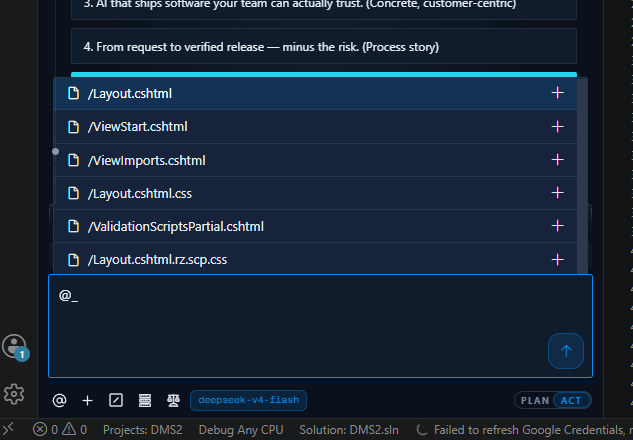
Some are more useful than they look:
@problemsturns "fix the build" into a task with the actual error list attached.@terminalis the fastest way to hand over a failing test run or a stack trace you have just produced.@gitwith Working changes is how you ask for a review of what you have written before you commit it — or how you explain what you were part-way through when you handed over.@urlis for the API reference or the issue thread the change depends on.
Note:
@folderis a blunt instrument. On a large folder it consumes a great deal of the context window for content the task will never use. Prefer two or three@filementions when you know which files matter.
Images
Click Add Files & Images to attach pictures to a message. The agent reads them alongside your text.
- Up to four images per message.
- Up to 20 images and files combined.
Images earn their place in a few specific situations:
- A screenshot of the bug. A rendering fault, a misaligned layout or a broken chart is far quicker to show than to describe.
- A design or mock-up. Give the agent the target and the component to build it from, and let it work out the gap.
- An error dialogue. Modal errors that cannot be copied as text are exactly what a screenshot is for.
The context window
Everything in a task — your messages, the agent's replies, every file it has read and every command's output — sits in one context window. The task header shows a meter for it, along with the tokens sent and received and the cache reads and writes for the task.
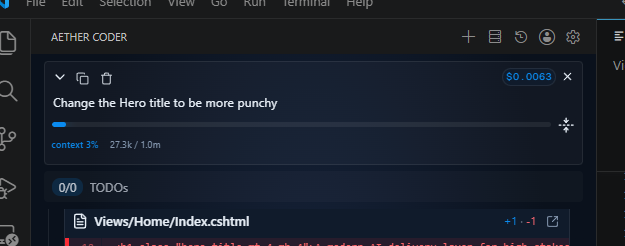
Watch that meter, because a full context window is what makes a long task feel worse than a short one:
- It gets slower. Every message carries the whole history with it.
- It costs more. You pay for that history on each turn. See Limits & Known Behaviour.
- It gets vaguer. The instruction you gave forty messages ago competes with a great deal of intervening detail.
Three things help.
Auto Compact (Settings → Features → Agent) condenses the conversation automatically as it approaches the limit, keeping the decisions and dropping the noise. It is off by default, so turn it on for long-running work.
The compaction control on the task header does the same thing on demand, which is useful at a natural boundary — you have finished the investigation and are about to start implementing, and none of the exploration needs to come along.
/smol condenses the conversation so far into a summary, from the message box. It is
the same idea as a keystroke rather than a click.
The blunter option is still the best one: when the outcome changes, start a new task.
/newtask creates one carrying context forward from the current task, so you keep the
conclusions without the transcript. See
Rules, Workflows & Slash Commands.
Focus Chain
Long tasks drift. The agent finishes step three, notices something interesting in step four, and by step six it is solving a different problem from the one you asked about.
Focus Chain (Settings → Features → Agent) keeps a running checklist for the task, visible as the work proceeds, so both of you can see what is done and what remains. It also has a reminder interval — by default every 6 messages — controlling how often the agent is prompted to re-read that checklist and confirm it is still on the plan.
It is on by default, and a handful of steps is where it earns its keep. On a short, two-file change the checklist is overhead you do not need, so this is one worth turning off for small tasks rather than on for large ones.
Give it the context you already have
The single most effective habit with this agent is to stop making it search for things you already know.
- Name the files. If you know the change belongs in
OrderService.csandOrderServiceTests.cs, mention both. You have just saved an exploration round. - Attach the evidence, not a description of it.
@problemsand@terminalbeat retyping an error message, and they beat it more the longer the error is. - Say what not to touch. "Do not change the public API" is a cheap sentence that prevents an expensive diff.
- Keep tasks to one outcome. A focused task has a small context window, and a small context window is fast, cheap and accurate.
Next steps
- Rules, Workflows & Slash Commands — standing context the agent gets in every task.
- Knowledge & Tools — the context that comes from your platform rather than your workspace.
- Limits & Known Behaviour — what a large context window costs.