

Plan & Act Modes
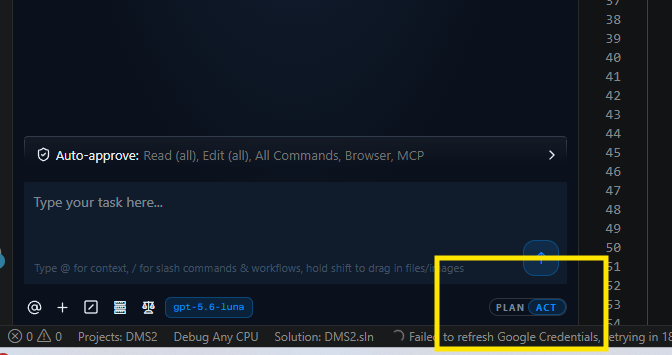
AETHER Coder works in two modes, and knowing which one you are in is the difference between an agent that thinks out loud and an agent that changes your files. You switch between them with a single toggle, at any point in a task.
- In Act mode the agent will complete the task immediately — reading, editing and running commands, asking for approval as it goes.
- In Plan mode it will gather information to architect a plan — opening files, answering your questions and proposing an approach, without carrying it out.
Those two descriptions are the tooltips you see in the panel, and they are worth taking literally. Plan is for agreeing what should happen; Act is for making it happen.
The toggle
The toggle sits in the message box, next to where you type. Click it to move between Plan and Act, or use the keyboard:
| Platform | Shortcut |
|---|---|
| Windows and Linux | Alt+Shift+A |
| macOS | Cmd+Shift+A |
You can switch mid-task as often as you like, and the agent follows whichever mode is selected as you go. A common rhythm is to start in Plan, go back and forth until the approach is right, switch to Act to have it built, then switch back to Plan to discuss what to do next.
When to plan first
Planning costs a round trip. It repays that cost whenever a wrong turn would be expensive to unpick.
- Unfamiliar code. If you cannot say which files should change, neither can the agent until it has read them. Let it look first and tell you what it found.
- More than a couple of files. Multi-file work has an ordering and a shape to it. It is much cheaper to correct that shape in a sentence than in six diffs.
- Anything you would want to review before it happens. Migrations, deletions, dependency changes, anything touching authentication or billing.
- When you are not sure the task is well posed. Plan mode is a good place to discover that what you asked for is not quite what you meant.
Conversely, go straight to Act for small, obvious, local work — rename this, add a null check there, write a test for this function. You already know what the change is; you do not need the agent to tell you.
Strict Plan Mode
By default, Plan mode is a convention: the agent is instructed to explore and propose rather than change things. Strict Plan Mode turns that convention into a rule.
- Open Settings from the gear icon in the panel header.
- Go to Features → Agent.
- Turn on Strict Plan Mode.
With it on, file edits are blocked while you are in Plan mode, so planning can never change anything on disk. If you are handing the extension to a team, or working in a repository where an accidental edit would be awkward, turn it on and leave it on.
Note: Strict Plan Mode restricts the agent, not you. You can still switch to Act at any moment — the toggle is unaffected. It simply removes the possibility of an edit arriving while you thought you were only talking.
Deep planning
For a substantial piece of work, /deep-planning produces a comprehensive implementation
plan before any coding starts. Type it in the message box, describe the work, and the
agent investigates the codebase properly before writing the plan out.
Use it when the task is big enough that you want the plan itself to be a document you can read, argue with and keep — a migration, a new subsystem, a refactor that crosses module boundaries. For a two-file change it is overkill; a normal Plan-mode exchange is quicker.
See Rules, Workflows & Slash Commands for the rest of the built-in commands.
A worked example
Suppose you want to add rate limiting to an API. You start in Plan and send:
Add rate limiting to the public API endpoints, 100 requests per minute per API key.
The agent reads the project and comes back with an approach: middleware registered in
Program.cs, an in-memory counter, and a new options class bound from configuration. That
is a reasonable plan — but you know something it does not, so you reply, still in Plan
mode:
We run several instances behind a load balancer, so an in-memory counter will not work. Use the Redis connection that is already registered in DI, and put the limits in
appsettings.jsonrather than a new options file.
The agent revises the plan: the same middleware, a Redis-backed counter using the existing
connection, and configuration read from the section you named. It also flags a question —
whether rate-limited requests should return 429 with a Retry-After header. You confirm
they should.
Now the plan matches what you would have written yourself, so you switch to Act and the agent starts implementing exactly that, asking for approval on each edit. Nothing was written to disk during the whole exchange above.
The lesson generalises: the corrections you make in Plan mode are cheap, and each one removes a diff you would otherwise have had to read, reject and explain.
Practical tips
- Answer the agent's questions. If it asks which of two approaches you prefer, saying "the second one" is worth more than any amount of extra instruction.
- Do not switch to Act while it is still exploring. Let it finish reading, or you get work built on half an understanding.
- Keep the plan in the task. The agreed plan is part of the conversation the agent carries into Act mode; starting a new task loses it.
- Go back to Plan when the ground shifts. If a diff reveals something neither of you knew, switch back and re-agree the approach rather than patching forward.
- Start a new task for a new outcome. See Context: Mentions, Images & Focus for why long tasks get slower and more expensive.
Next steps
- How the Agent Edits Your Code — diffs, checkpoints and restores.
- Rules, Workflows & Slash Commands — standing instructions and reusable procedures.
- Settings Reference — where Strict Plan Mode and the other agent options live.