

Agent Skills
A skill is a folder holding a SKILL.md and any supporting files — a reviewed way of
doing one kind of work, which the agent loads only when the task calls for it.
Developers can keep their own skills in a workspace or in their home directory. Agent Skills are different: you import them once against the agent in AETHER, and every developer using that agent gets the same set, synced to their machine automatically and read-only in the editor. One team, one reviewed way of working — instead of a private folder per developer and a different answer depending on who asked.
This page covers both halves: configuring them in AETHER, and where a developer sees them in VS Code.
Where they are configured
On the agent, in AETHER. Open the agent and choose the Skills tab. The tab appears only once Code Agent mode is enabled — see Enabling Code Agent Mode.
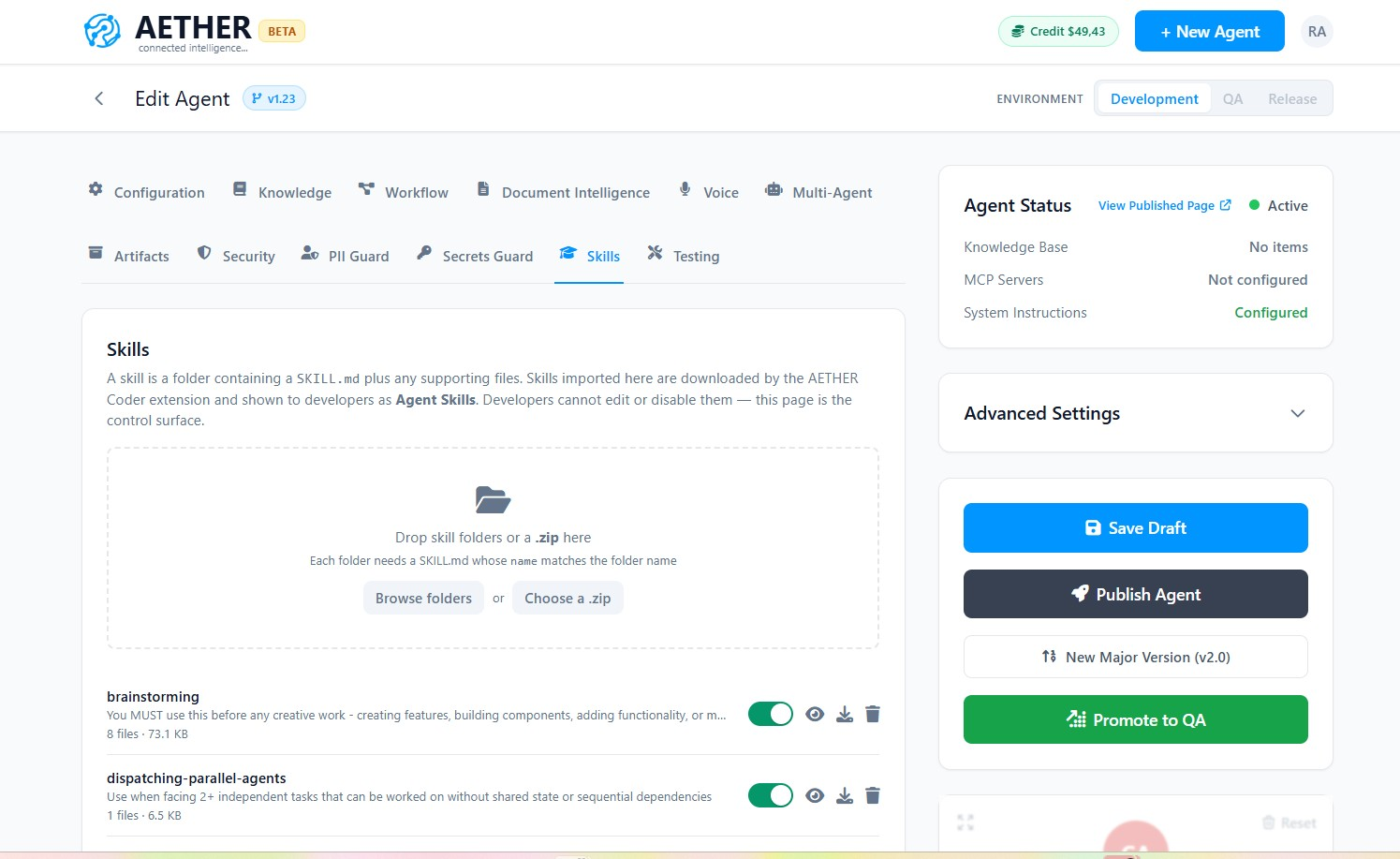
Drop skill folders onto the zone at the top, or use Browse folders to pick them, or Choose a .zip to upload an archive. Each imported skill is listed underneath with its description, file count and size, where you can view, enable, disable or delete it.
Importing a skill whose name already exists replaces it. That is how you publish a change: re-import the folder. There is no editing in place — the view modal is read-only, because the folder on your machine, in your repository, stays the source of truth.
What a skill folder must contain
| Requirement | Detail |
|---|---|
SKILL.md at the top level |
The instructions themselves, with YAML frontmatter. |
name must match the folder name |
A folder code-review/ needs name: code-review. A mismatch is rejected on import — and would be silently ignored by the extension, so it is caught here instead. |
description in the frontmatter |
This is what the agent reads when deciding whether to use the skill, so write it as when-to-use, not what-it-is. |
| Supporting files | Anything else in the folder — references, checklists, templates. The agent is told the skill's directory path and can read them when it needs to. |
Common noise is filtered out on the way in: .git, node_modules and dotfiles are dropped
rather than rejected, so you can drag a folder straight from a checkout.
Import limits
| Limit | Value |
|---|---|
| Per file | 5 MB |
| Files per skill | 500 |
| Total per skill | 25 MB |
| Skills per agent | 100 |
| Per upload | 30 MB |
A skill that breaks one of these is rejected with the reason; the rest of the upload still lands.
Where developers see them
In VS Code, open the rules and workflows modal from the panel and choose the Skills tab. Agent Skills appear as their own section, below Workspace Skills.
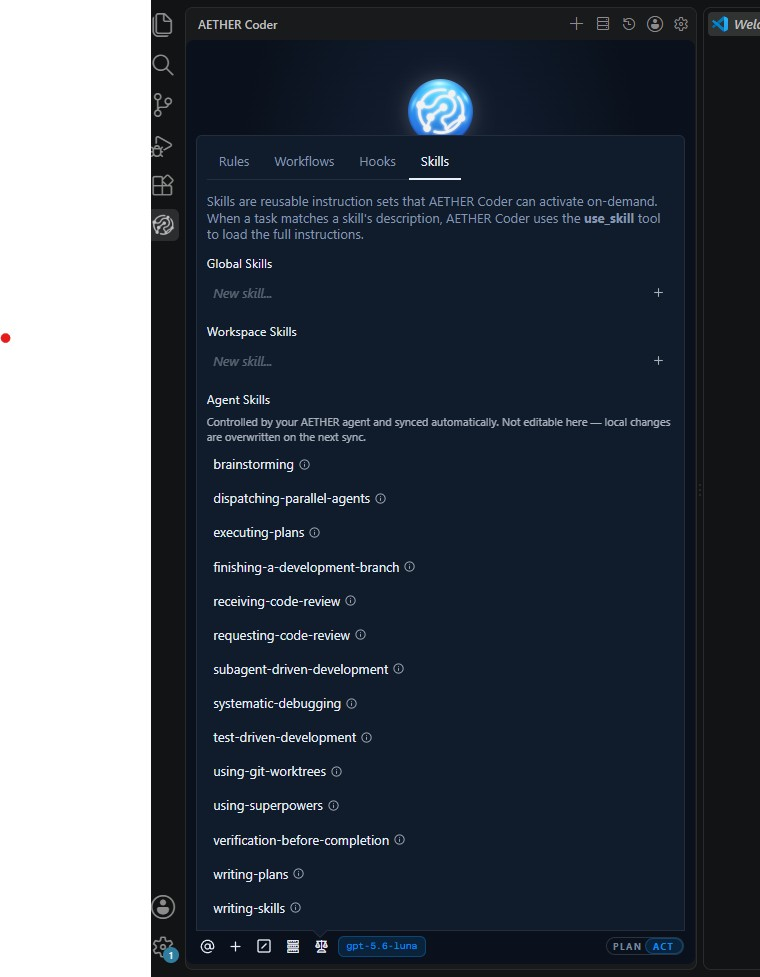
The section carries no toggle, no edit and no delete, and no "New skill…" row. That is deliberate: this page is the control surface, and a developer cannot switch off a skill the organisation decided the agent should have. If the agent has no skills imported, the section is not shown at all — a developer not on a Code Agent sees no change.
Skills are synced to a cache under ~/.cline/agent-skills/, keyed so that switching agents
or servers never mixes two organisations' skills together. Treat it as a cache, not a
workspace: files edited there are overwritten on the next sync.
Precedence, and when a skill is shadowed
If the same skill name exists in more than one place, the agent skill wins. Per-agent configuration is more specific than an organisation-wide rule, and more specific than one developer's own file. Full order, highest first:
- Agent Skills — imported here
- Enterprise Skills — organisation-wide remote config
- Global Skills — the developer's own, in their home directory
- Workspace Skills — the developer's own, in the project
This never happens quietly. When an agent skill overrides a developer's file of the same name, the modal marks both rows — the agent skill as overrides, and the losing row as overridden by an agent skill — so nobody is left wondering why their own version stopped taking effect.
How syncing behaves
The extension checks for changes when it starts, when a developer opens the Skills tab, and before a task if the last check is more than five minutes old. It never blocks a task on the network — a task uses whatever is already on disk, and a refreshed set applies to the next one. Each check is a single cheap request that transfers nothing when nothing has changed.
A failed check keeps what is already there. Skills disappear from a developer's machine only when this page says they are gone — not because their wifi dropped. If a check keeps failing, or their access token has expired or been revoked, the modal says so.
Enabling and disabling take effect the same way. A disabled skill is simply absent from what the extension is told about, and is removed from the developer's cache on their next sync.
Next steps
- Rules, Workflows & Slash Commands — the rest of the modal, and how skills differ from rules.
- Enabling Code Agent Mode — the setting that reveals the Skills tab.
- Access Tokens — what a developer needs before anything syncs.