

Remote Developer View
The Remote Developer View is your AETHER Coder panel, mirrored into a browser. Same conversation, same buttons, same task — driven by the VS Code window still running on your machine. Open it on a phone or a second screen to watch a long task, approve a step or send the next instruction without going back to your desk.
It is a mirror, not a second agent. Nothing runs in the browser: the editor on your machine still reads the files, writes the edits and runs the commands, and every message still goes to the same agent under your own access token. Close the editor and the mirror goes quiet.
Opening it
- Open the AETHER Coder panel and click the gear to open Settings.
- Choose the Remote tab — the last icon in the rail down the left of the settings view.
- Scan the QR code with your phone's camera, or click the Target Auth URL printed underneath it to open the mirror in a browser on this machine.
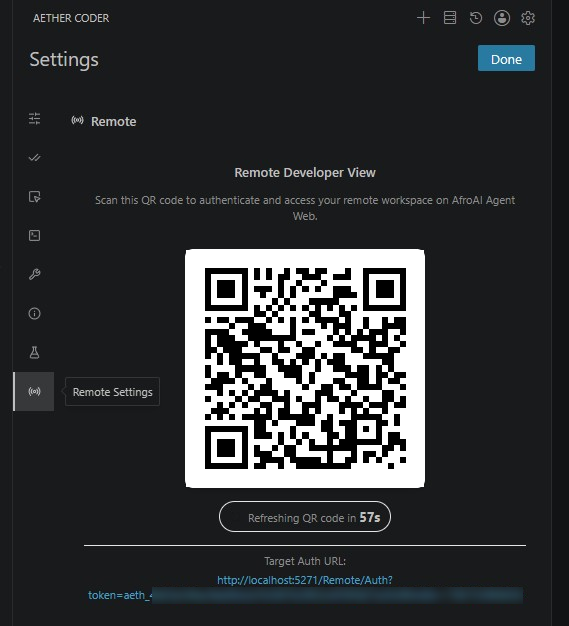
The extension needs a valid access token in API Configuration to generate the QR — that token authenticates the request that mints the code, but it never travels inside the code itself. If API Configuration has no token, the tab says Access Token Missing and there is nothing to scan — paste a token in first. See Access Tokens.
The link redeems a one-time pairing code at /Remote/Pair on your AETHER host and lands on
/Remote, which is the mirror itself. Redeeming the code signs the browser in for 24 hours,
so a phone you have already paired goes straight there next time without rescanning — as long
as the session id it is paired to is still alive. That id lives only in the editor's memory,
not on disk, so restarting VS Code (or reloading the extension) drops it: every phone paired
against the old session is orphaned and needs one more scan of a fresh QR code, even though
its 24-hour cookie has not expired.
The address is built from the Base URL in API Configuration, so the mirror is served by the same AETHER host your agent already runs on. A browser that cannot reach that host — a phone off the corporate VPN, for instance — cannot open it. See Connect to AETHER for what that value should be.
Note: on a local development platform the URL you see may point at the plain HTTP port rather than the HTTPS one you configured. That is deliberate: a browser refuses a local certificate it does not trust, and the mirror would fail to load. Deployed environments use the host exactly as you configured it.
Treat the QR code like a password
The QR code encodes a single-use pairing code, not your access token. Whoever redeems it first — you, or anyone who photographs it or is sent the link in time — gets a signed-in mirror session; the code itself only has a ninety-second window to be used in.
- The code is re-drawn every 60 seconds, and each one is an independent, single-use credential. A code that has already been redeemed, or that is more than 90 seconds old, is worthless: scanning an old photograph just gets a rejected pairing, nothing more.
- Do not screen-share, screenshot or paste the Remote tab while a QR code is on screen, and do not put the pairing link in a chat message or a ticket — someone could redeem it before you do.
- Your personal access token is never in the QR code, the pairing URL, a cookie, or anywhere on the mirror page itself. If it leaks, it leaks some other way — a captured request header, a copied config file — not through this screen.
- If a paired browser falls into the wrong hands anyway, revoke the access token under My Account → Access Tokens and generate another. Revocation is no longer cosmetic: the mirror re-authenticates on every reconnect, so a revoked token stops that mirror within one reconnect cycle, and the extension's own requests start failing until you paste the new token into API Configuration.
Note: a paired browser stays signed in for 24 hours. That is still long enough that a lost or stolen device is worth reporting the way you would report a lost laptop — revoke the token and tell your administrator, who can disable the account if the device cannot be recovered.
What you can do in the browser
Everything the conversation offers in the panel:
- Read the transcript as the agent streams it.
- Approve or reject a proposed edit, and approve or deny a command.
- Switch between Plan and Act, answer a follow-up question, and send the next message.
- Attach an image from the device — a photo of a whiteboard, a screenshot from the phone.
Two things appear in the browser that are not in the panel: a navigation bar across the top, and a small latency reading beside the message box showing the round trip to your editor.
What does not move is anything that is a VS Code action rather than a conversation one. A diff opens in the editor on your desk, a command runs in a terminal there, and your files never leave that machine. The mirror shows you the conversation about those things and lets you decide; the work itself stays put.
What the mirror can no longer do
A stricter allowlist between the mirror and the extension closes off a few actions that used to reach the extension host from a browser. Rather than have you find out by clicking a button that quietly does nothing, here is the boundary:
- Restoring a checkpoint. Rolling the workspace back to an earlier point is a filesystem write; it stays a VS Code action only.
- The rules/hooks/skills popover. Creating or editing a Cline rule, hook or skill file from the mirror does not work — those write to the workspace too.
- Managing task history. Deleting, exporting or favouriting a past task from the mirror does not work; do that from the editor.
- Settings, MCP and Account. All three screens are unreachable from the browser — provider configuration, MCP server management, and AETHER account sign-in/out stay desktop-only.
@-mention file search. Typing@in the composer to search and attach a workspace file does not return results from the mirror.- Rich link previews. A URL the agent posts renders as plain text in the browser instead of the title/description card the panel shows — fetching that preview means the extension host making a request to whatever URL is in the message, and the mirror does not get to hand it one.
- Inline image-URL rendering. The same reasoning applies to a bare image URL in the conversation: the panel loads and displays it inline, the mirror leaves it as a link.
Everything listed under "What you can do in the browser" above is unaffected — this is what changed, not a shrinking of that list.
What it needs to stay connected
| Requirement | Why |
|---|---|
| The editor running, with the Coder panel opened at least once | The mirror is fed from the panel's own state. Collapsing the sidebar is fine; closing the window ends the mirror. |
| A valid access token in API Configuration | The extension uses it to mint the pairing code and hub tickets; the session id both ends actually join on is generated at random, never derived from the token. The extension re-checks every few seconds, so pasting a token connects the mirror without a restart. |
| A network path to your AETHER host from both ends | The relay runs on your platform. Nothing about the mirror involves a third-party service. |
Reconnection is automatic. If the network drops, the browser rejoins and asks the editor for a fresh copy of the conversation, so a flaky phone signal costs you a moment rather than the session. When no browser is attached, the extension does no remote work at all — an unused mirror costs nothing.
Images and long conversations
Only what changed travels on each update, so a long task does not get slower to mirror as the transcript grows.
Images are handled separately, because re-sending a screenshot on every update would swamp a phone connection. Each image is uploaded once, stored against your own account, and referred to by a short link from then on. PNG, JPEG, GIF and WebP are accepted, up to 12 MB each. An image is kept for 24 hours after it was last viewed, and for at most seven days.
Known behaviour
- The mirror does not follow your editor's colour theme. It renders in a fixed dark palette regardless of the theme VS Code is using.
- More than one browser can watch the same session, and any of them can drive it. There is no read-only mode — sharing the link shares control.
- The mirror is not a workspace. It cannot open a file, browse the repository or run anything on its own; without the editor there is nothing behind it.
Next steps
- Access Tokens — the credential your extension already uses, and the one to revoke if a paired device is lost.
- Settings Reference — the rest of the settings tabs.
- Running Commands & Auto-Approve — what you will be approving from the phone.