

How the Agent Edits Your Code
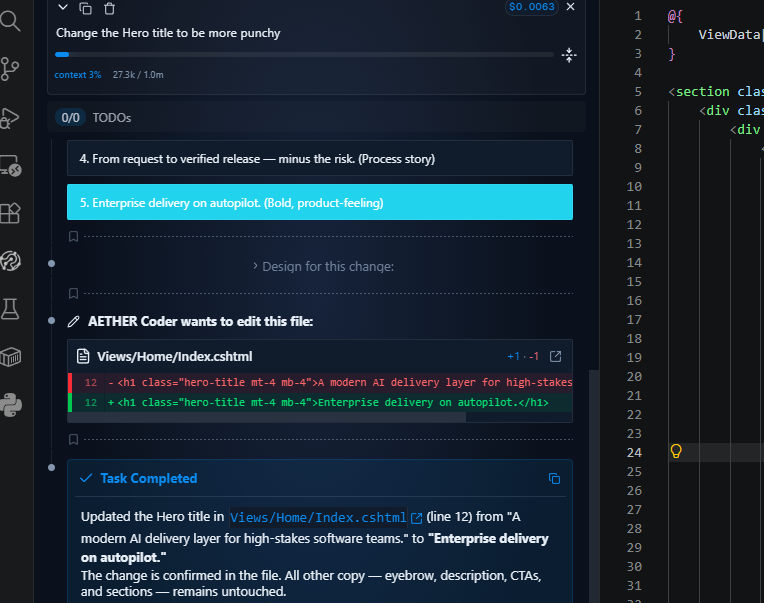
The agent never writes to your files behind your back. Every change it wants to make arrives as a diff in the editor, and nothing reaches disk until you decide. This article covers that review gate, and the checkpoints that let you undo a whole run of changes when a task goes the wrong way.
Every edit is a diff you approve
When the agent changes a file, Visual Studio Code opens a diff view showing the current content beside the proposed content. Two buttons sit above it:
- Save applies the change and lets the agent continue.
- Reject discards it and tells the agent to try something else.
The same gate covers all three kinds of change:
| Change | What you see | Buttons |
|---|---|---|
| An edit to an existing file | The old content beside the new, with the changed lines highlighted | Save / Reject |
| A new file | The proposed file, with its path | Save / Reject |
| A deletion | The file being removed, so you can see what would be lost | Save / Reject |
Read the first few diffs of any task properly. You are not only checking correctness — you are learning how this agent behaves on this codebase, which is what tells you later which kinds of edit are safe to auto-approve. See Running Commands & Auto-Approve.
Note: rejecting an edit does not end the task. It tells the agent that the approach was wrong and asks it to try differently. Add a short reason — "keep the existing validator, just extend it" — and the next attempt is usually right. A rejection with a reason is one of the cheapest corrections available to you.
Background Edit
By default, each diff takes focus in the editor as it arrives, which is what you want while you are reviewing closely. It is less welcome when you are working in another file and the agent is grinding through a long task.
Background Edit (Settings → Features → Editor) applies edits without stealing editor focus, so the agent can work while you keep typing. The changes still happen, and you can still review them afterwards in source control or through a checkpoint comparison — you simply are not interrupted for each one.
Turn it on for long, well-understood tasks. Leave it off while you are still building confidence in what the agent produces.
Checkpoints
Checkpoints (Settings → Features → Editor) save your progress as the task runs. Each step the agent takes gets a restore point behind it, so you can put the workspace back the way it was at any earlier moment in the task.
Checkpoint controls appear against the messages in the conversation:
| Control | What it does |
|---|---|
| Compare | Shows what changed between that checkpoint and your workspace as it is now. |
| Restore Task | Rewinds the conversation to that point and leaves your files alone. |
| Restore Workspace | Puts your files back as they were at that point and leaves the conversation alone. |
| Restore Both | Rewinds the conversation and the files together. |
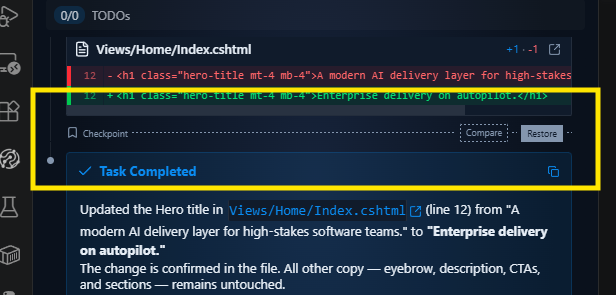
The distinction matters more than it first appears:
- Restore Task is for when the code is fine but the conversation has gone stale — the agent is stuck in a loop, or carrying an assumption you have since corrected. You keep the work and rewind the discussion.
- Restore Workspace is for when the conversation is fine but the code is wrong. You keep everything you have discussed and simply undo the files, then let the agent try again with everything it has learned.
- Restore Both is the true "that whole branch of the task was a mistake" button. Use Compare first if you are not certain what you would be discarding.
Why checkpoints make broad tasks worth attempting
Without checkpoints, a large task is a gamble: if the agent takes a wrong turn on the fourth file of a nine-file change, unpicking it by hand can cost more than doing the work yourself would have.
With checkpoints, the worst case is a rewind. That changes what is worth asking for. You can attempt the sweeping rename, the framework upgrade or the test-suite migration, watch it for a few files, and if the pattern is wrong, restore and reword the instruction. The cost of a bad attempt drops to the time it took to run.
Checkpoints belong to the task, so they are also a good reason to start a new task for a new outcome rather than letting one conversation sprawl.
Warning: checkpoints are not a substitute for source control. They restore the workspace to a moment inside a task; they are not a history you can share, review or push. Start tasks from a clean working tree so your own uncommitted work is never mixed in with the agent's.
Reviewing before you commit
When a task finishes, the agent summarises what it changed and why, file by file. Treat that as a table of contents, not as evidence.
- Open the Source Control view in Visual Studio Code.
- Read the full diff yourself, file by file.
- Run the build and the test suite.
- Stage and commit as you normally would.
The agent does not commit or push for you. That is deliberate: the commit is the point at which you take responsibility for the change, and it should be a decision you make with the whole diff in front of you.
If the diff contains something you did not intend, you do not have to fix it by hand — restore to the checkpoint before that step and ask again more precisely.
Next steps
- Running Commands & Auto-Approve — decide what the agent may do unattended.
- Context: Mentions, Images & Focus — give the agent the right files before it starts editing.
- Troubleshooting — when a diff will not apply or an edit goes missing.