

Running Commands & Auto-Approve
Builds, tests, migrations, package installs — a coding agent that cannot run anything is only half useful. AETHER Coder can use your terminal, but it asks first, and you decide how much of that asking you want to keep.
Approving a command
When the agent wants to run something, the exact command appears in the conversation with three possible responses:
| Button | What it does |
|---|---|
| Run Command | Runs the command and shows its output in the conversation. |
| Reject | Refuses the command. The agent carries on without that step. |
| Proceed While Running | Lets the agent keep working while the command continues to stream output. |
Proceed While Running is for commands that do not finish on their own — a watch build, a dev server, a log tail. Without it, the agent would sit waiting for a process that never exits. With it, the command keeps running in the background and its output continues to arrive in the conversation.
Read the command before you approve it. The agent is careful and it explains what it is about to do, but it is your machine, your terminal and your credentials.
The auto-approve bar
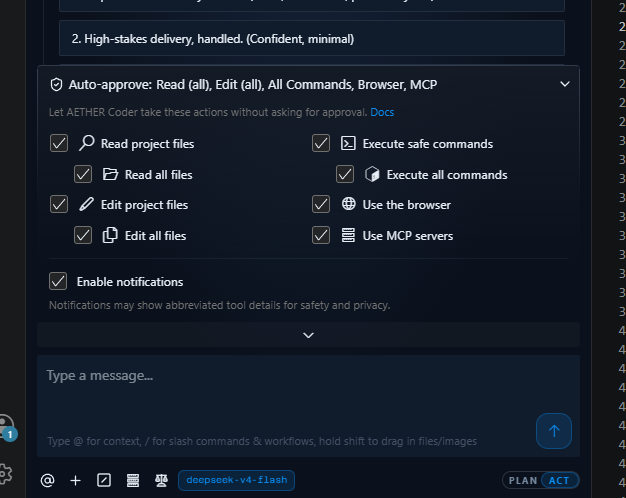
Above the message box is the auto-approve bar. It summarises what the agent may currently do without asking, and clicking it opens the modal where you change that.
Auto-approve is per action type, not per command, and it is remembered between tasks. The sensible way to use it is gradually: run a few tasks with everything asking, notice which prompts you approve every single time without reading, and turn those on.
What can be auto-approved
| Action | Default |
|---|---|
| Read project files (and Read all files beyond the workspace) | On |
| Edit project files (and Edit all files beyond the workspace) | Off |
| Execute safe commands (and Execute all commands) | Safe commands on |
| Use the browser | Off |
| Use MCP servers | On |
| Enable notifications | Off |
The sub-options widen each permission beyond its default scope:
- Read all files and Edit all files extend the agent's reach outside the open workspace. Leave both off unless you have a specific reason — a task that legitimately needs a file elsewhere on disk can still ask for it.
- Execute all commands removes the distinction between safe commands and everything else, which includes commands that install packages, change git state or delete things.
- Enable notifications is the odd one out: it is not a permission but a convenience, raising a system notification when the agent needs you.
Editing is off by default for a good reason. Reading a file is recoverable; a wrong edit applied without review is the thing checkpoints exist to rescue you from. See How the Agent Edits Your Code.
Warning: Yolo mode. Yolo Mode (Settings → Features → Experimental) approves everything — every edit, every command, every tool call — with no prompt at all. When it is on, the auto-approve bar reads
Auto-approve: YOLO. It is genuinely useful in a throwaway branch or a scratch repository where the worst case is deleting the folder and starting again. It is not appropriate on a working tree you care about, on a shared machine, or anywhere the agent can reach production credentials. Check the bar before you start a task on a real project.
Terminal settings
Commands run in a real Visual Studio Code terminal, and how that terminal behaves is configurable under Settings → Terminal.
| Setting | What it controls |
|---|---|
| Default terminal profile | Which shell the agent's commands run in. |
| Shell integration timeout | How many seconds to wait for the shell to report that a command has finished. |
| Aggressive terminal reuse | Whether the agent reuses existing terminals rather than opening new ones. |
| Terminal execution mode | How commands are dispatched to the shell. |
| Output line limit | How many lines of output are captured back into the conversation. |
Note: if commands appear to hang — the command clearly ran, but the agent sits waiting — raise the shell integration timeout. That is the usual fix. Some shells, and especially heavily customised prompts on Windows, take longer than the default to report completion, and the agent is waiting for a signal that arrives late.
A few more things worth knowing:
- Output line limit trades detail for context. A verbose test run can consume a large slice of the context window; a low limit keeps tasks cheaper but can truncate the very stack trace the agent needed.
- Aggressive terminal reuse keeps your terminal panel tidy, but a command that changed the working directory or set an environment variable leaves that state behind for the next one.
- The agent does not get its own privileges. Anything it runs, it runs as you.
Choosing a level to work at
Most developers settle at one of three levels:
- Everything asks. Slowest, and the right place to start on an unfamiliar codebase. Reads, safe commands and MCP servers are auto-approved out of the box, so this level means switching those defaults off yourself.
- Reads and safe commands auto-approved, edits reviewed. The common steady state: you stop confirming file reads and test runs, and still see every diff.
- Edits auto-approved too. Fast, and workable once checkpoints and clean source control give you a reliable way back.
Whichever level you pick, keep the working tree clean before you start. Review at the end is only meaningful if the diff shows the agent's work and nothing else.
Next steps
- How the Agent Edits Your Code — the diff gate and checkpoints.
- Settings Reference — every option in the panel's Settings view.
- Troubleshooting — commands that hang, fail or produce no output.