

Connect to AETHER
Three values connect the extension to your agent: the address of your platform's code endpoint, the agent's API key, and your personal access token. All three come from AETHER, and you enter them once — the extension remembers them for every task afterwards.
You never choose a model here. The model, the knowledge base and the tools all belong to the agent, and your administrator governs them in AETHER.
What you need
| Value | Where it comes from |
|---|---|
| AETHER API URL | Your platform's code endpoint, ending in /api/code/v1 — for example https://your-aether-host/api/code/v1. Your administrator can confirm the host. |
| AETHER API Key | The agent's API key, shown on its published page. See Publishing & Environments. |
| Access Token | Your personal token, generated under My Account → Access Tokens. It begins aeth_. See Access Tokens. |
The API key identifies the agent; the access token identifies you. Both are sent with every request, which is how a coding session ends up attributed to a person rather than to a shared machine account.
Connecting for the first time
On a fresh install the panel opens on a welcome screen titled Welcome to AETHER Enterprise Coder, offering a single option — Connect to AETHER.
- Click Continue to reach Configure your AETHER connection.
- In AETHER API URL, enter your platform's code endpoint. The placeholder shows the
expected shape,
https://your-aether-host/api/code/v1. - In AETHER API Key, paste the API key from the agent's published page.
- In Access Token, paste your personal token — the one starting
aeth_. The field is masked as you type. - Click Continue.
The panel switches to the chat view and you are ready to start a task.
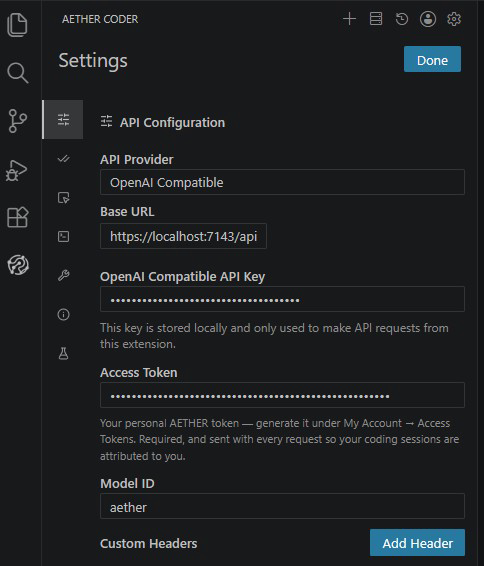
If the first screen you see is different, open Settings → API Configuration and enter the same three values — see Troubleshooting.
Warning: the form does not check these values as you type, and clicking Continue does not test the connection. A typo in the URL, key or token surfaces as an authentication or connection error on your first message, not here. If your first task fails immediately, come back and check all three values — see Troubleshooting.
Changing the connection later
Everything you entered during onboarding stays editable.
- Open the AETHER Coder panel.
- Click the gear icon in the panel header to open Settings.
- Open the API Configuration tab.
The same three values appear there under slightly different labels:
| Setting | What to put in it |
|---|---|
| Base URL | The same code endpoint you entered as AETHER API URL. |
| API Key | The agent's API key. Change this to point the extension at a different agent. |
| Access Token | Your personal aeth_… token. Replace it here after rotating a token. |
| Model ID | Must remain aether. |
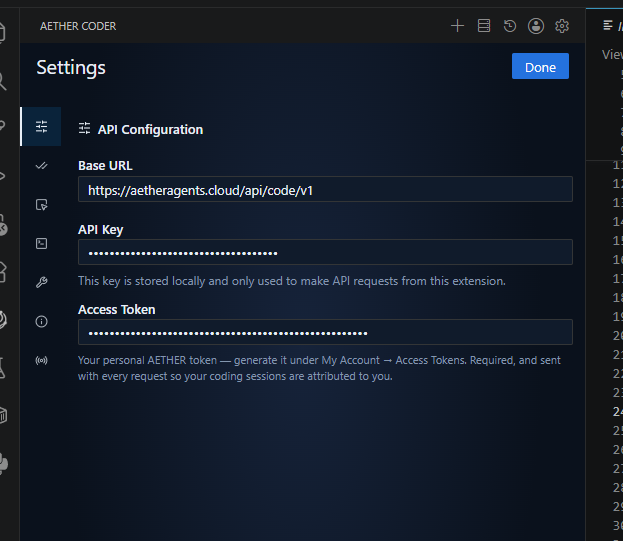
Model ID must stay
aether. It is not a model name and it does not select a model — it is the fixed identifier the platform expects. AETHER resolves the real model from the agent's configuration. Change it and the agent does not fail cleanly — it falls back to a generic prompt and behaves noticeably worse. See Limits & Known Behaviour.
Changes take effect on your next message; you do not need to reload the window.
Note: the URL must include the full
/api/code/v1path — the host on its own is not enough — and it should usehttpsso your prompts and code are encrypted in transit. Do not add a trailing path segment or a model name after/api/code/v1.
Switching to a different agent
Different agents can carry different knowledge, tools and budgets — for example one for back-end services and one for front-end work. To switch, replace the API Key in API Configuration with the other agent's key, and update the Base URL if that agent lives on a different platform host. Your access token stays the same, because it belongs to you rather than to the agent.
What gets stored where
- The API key and access token are stored locally by Visual Studio Code on your machine, alongside the extension's other settings.
- They are sent only to the AETHER URL you configured, and to nowhere else.
- Your code, prompts and diffs travel only to that same endpoint. Nothing is sent to a third-party AI service.
- The extension contributes no Visual Studio Code settings of its own — every option lives in its own Settings view inside the panel. See Settings Reference.
Because the credentials live on the machine, treat a shared or borrowed workstation with care: uninstalling removes the stored values, but revoking the token in AETHER is what actually ends its access.
Next steps
- Your First Task — run a real change end to end.
- Access Tokens — generate, rotate and revoke your token.
- The Code API — the endpoint these three values point at.
- Settings Reference — every option in the panel's Settings view.