

Install the Extension
There are two ways to install AETHER Coder. Most developers should take the first.
| Route | Use it when |
|---|---|
| Visual Studio Marketplace | Normal use. VS Code keeps the extension up to date on its own. |
.vsix from your platform |
Your organisation pins a specific build, or the machine cannot reach the Marketplace. |
Either way the extension is only the front end — the model, the knowledge base, the guardrails and the budget stay on your AETHER platform, and none of that changes with how you installed.
The whole install takes a minute or two.
Requirements
| Requirement | Detail |
|---|---|
| Visual Studio Code | Version 1.84 or later. Check with Help → About (Code → About Visual Studio Code on macOS). |
| Other extensions | None. AETHER Coder has no extension dependencies. |
| Operating system | Windows, macOS and Linux are all supported. |
| Network access | Your machine must be able to reach your AETHER platform over HTTPS. |
Note: if VS Code refuses to install the package and mentions an unsupported engine version, you are on a release older than
1.84. Update VS Code and install again.
Option A — Install from the Marketplace
- Open Visual Studio Code.
- Open the Extensions view from the activity bar, or press
Ctrl+Shift+X(Cmd+Shift+Xon macOS). - Search for AETHER Enterprise Coder.
- Check the publisher reads AI Explorers, then click Install.
From the terminal instead:
code --install-extension aiexplorers.aether-enterprise-coder
Or open the listing directly: marketplace.visualstudio.com/items?itemName=aiexplorers.aether-enterprise-coder
Note: the publisher is AI Explorers and the identifier is
aiexplorers.aether-enterprise-coder. Anything else with a similar name is not this extension.
Option B — Install from a .vsix
Use this route when your organisation distributes an approved build, or the machine has no Marketplace access.
- Open the AETHER Coder page and click Download aether-enterprise-coder-latest.vsix. The download link always serves the current build, so the file name does not change between releases.
- Open Visual Studio Code.
- Open the Extensions view, or press
Ctrl+Shift+X(Cmd+Shift+Xon macOS). - Click the … menu at the top of the Extensions view.
- Choose Install from VSIX….
- Select the
aether-enterprise-coder-latest.vsixfile you downloaded. - Wait for the confirmation notification, and reload the window if VS Code prompts you to.
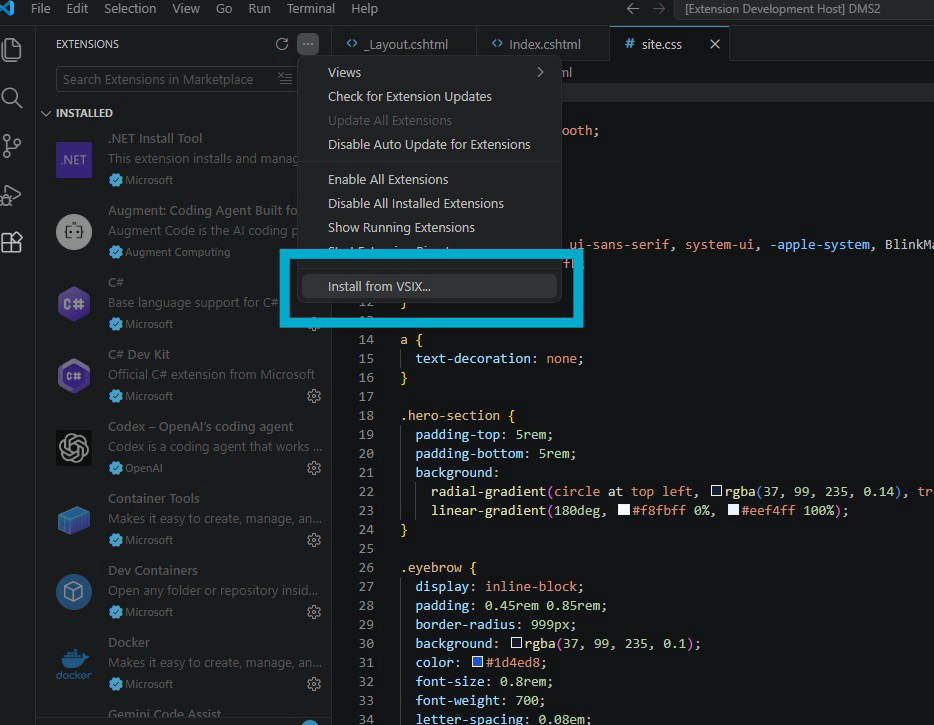
If you prefer the terminal, run this from the folder containing the downloaded file:
code --install-extension aether-enterprise-coder-latest.vsix
The code command is available once you have installed VS Code's shell command — on
macOS, run Shell Command: Install 'code' command in PATH from the Command Palette.
Warning: an extension installed from a
.vsixnever updates itself. You are responsible for installing newer builds by hand — see Updating below.
Confirm it installed
An AETHER Coder icon appears in the activity bar, down the left-hand edge of the window. Click it to open the panel.
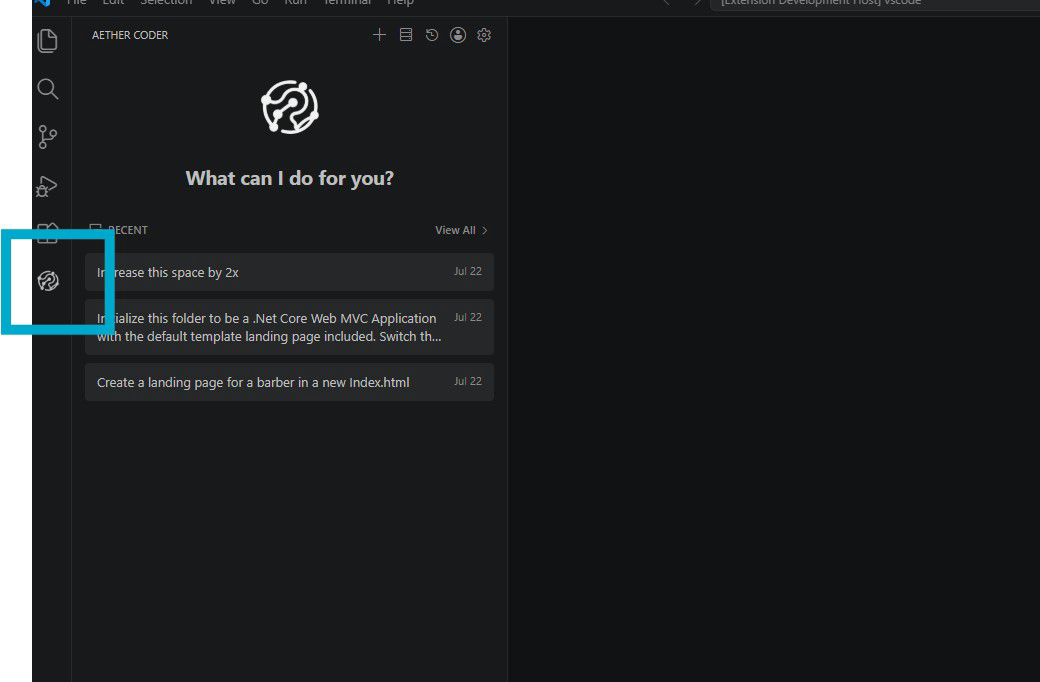
On a fresh install the panel opens ready for you to connect, and you will need your AETHER API URL, API key and access token to hand. That is the next article — Connect to AETHER.
If the icon is missing, check the Extensions view for AETHER Enterprise Coder in the installed list. If it is listed but disabled, enable it and reload the window.
Moving from an earlier .vsix install
Builds distributed before the Marketplace listing were published under a different
identifier, afrocentric.aether-enterprise-coder. VS Code treats that as a different
extension from the Marketplace one, so installing from the Marketplace does not replace
it — you end up with both installed and two AETHER Coder icons in the activity bar.
Remove the old one:
- Open the Extensions view.
- Find AETHER Enterprise Coder in the installed list. If two entries appear, click each and check the Identifier shown on its details page.
- Uninstall the one whose identifier begins
afrocentric.. - Reload the window.
Your connection settings and task history belong to the extension that wrote them, so after removing the old entry you will be asked for your API URL, API key and access token once more. Have them to hand before you start — see Connect to AETHER and Access Tokens.
Note: you do not need to revoke or regenerate your access token to do this. The same token works in the Marketplace build.
Updating
Installed from the Marketplace: nothing to do. VS Code checks for updates and installs them in the background, so you pick up new builds automatically. To update immediately, open the Extensions view, find AETHER Enterprise Coder and click Update if one is offered.
Installed from a .vsix: updates are not delivered automatically. To move to a newer
build:
- Download the current
aether-enterprise-coder-latest.vsixfrom the AETHER Coder page. - Install it exactly as in Option B.
- Reload the window when prompted.
The new package replaces the previous version in place. Your connection settings and your task history are preserved, so you can carry on where you left off. There is no need to uninstall first.
Tip: if your organisation pins a specific build, ask your administrator before updating — the platform side and the extension side are released together.
Uninstalling
- Open the Extensions view.
- Find AETHER Enterprise Coder in the installed list.
- Click the gear icon and choose Uninstall.
- Reload the window when prompted.
Uninstalling removes the extension and its locally stored settings from that machine. It does not revoke your access token — if you are handing the machine on, revoke the token in AETHER as well. See Access Tokens.
Next steps
- Connect to AETHER — enter your API URL, API key and access token.
- Your First Task — put the agent to work on a real change.