

Access Tokens
Every request AETHER Coder makes carries two credentials. The agent's API key says which agent should answer; the personal access token says who is asking. The token is not optional — a request without a valid one is refused before the agent is ever reached.
That second credential is what makes coding sessions auditable. The recorded conversation is stamped with the token's owner, so a coding session is attributed to a named person rather than to a shared machine account. Take the token away and you still have an agent, but you no longer know who used it.
Tokens are personal. Every developer generates their own, and nobody — including you — can generate one on someone else's behalf.
Generating a token
- Sign in to AETHER and open My Account.
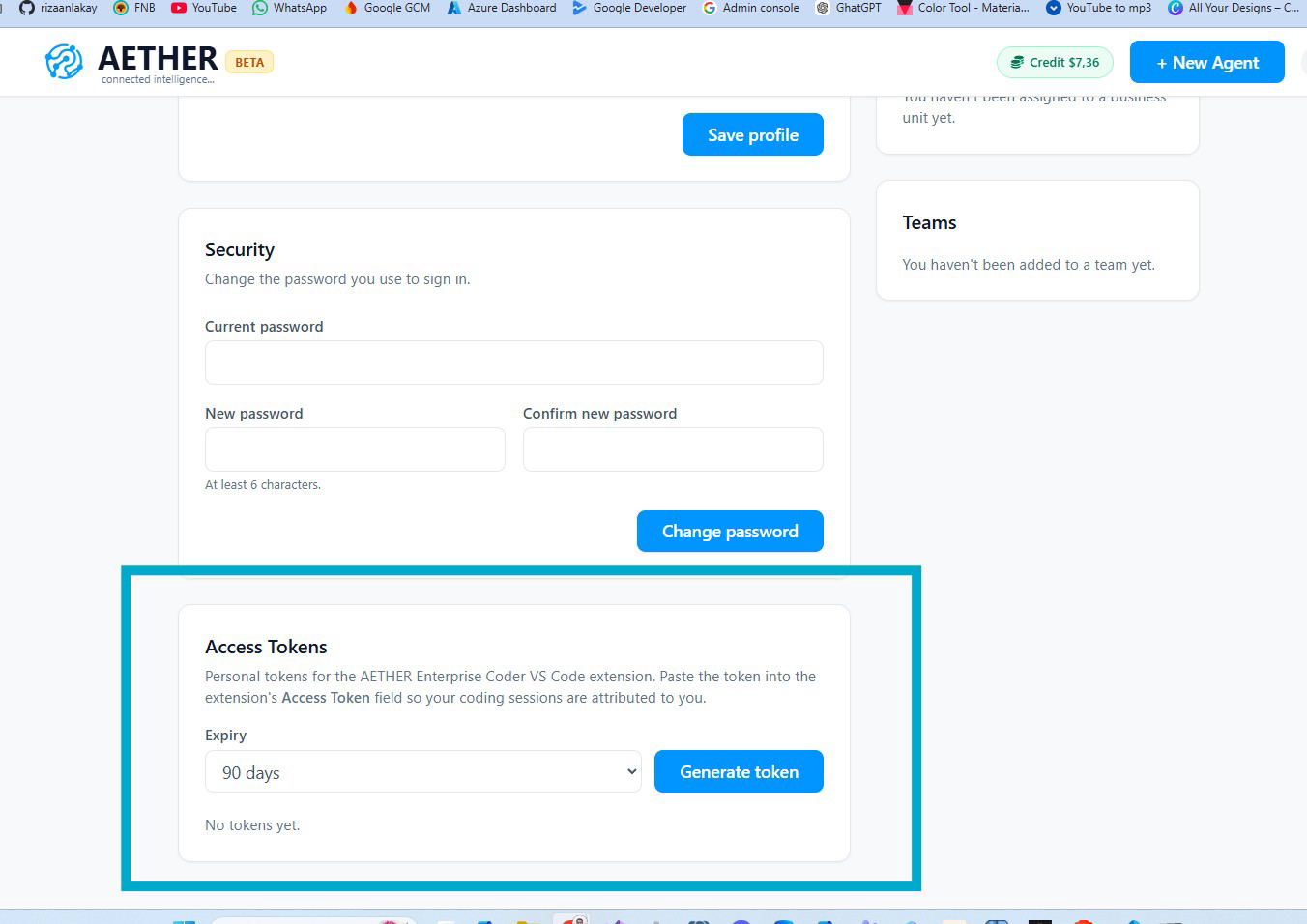
- Find the Access Tokens card.
- Choose an Expiry — 30 days, 90 days, 365 days or Never expires. The form pre-selects 90 days.
- Click Generate token.
- Click Copy and paste the token straight into the extension, or into your password manager.
Warning: the token is displayed once, at the moment you create it. For security it is never shown again — the list afterwards holds only a short prefix, not the value. If you navigate away before copying it, or lose it later, there is nothing to recover: revoke that token and generate another.
Every token begins with aeth_. If the value you are about to paste does not start that
way, it is not an access token — most often it is the agent's API key, which belongs in a
different field.
Choosing an expiry
Expiry is chosen once, when the token is created, and cannot be extended afterwards. A shorter lifetime is a smaller blast radius; a longer one is fewer interruptions.
| Expiry | Suits |
|---|---|
| 30 days | Contractors, trials and short engagements with a known end date. |
| 90 days | The sensible default for permanent staff, and the option pre-selected. |
| 1 year (365 days) | Long-lived internal use where rotation is a scheduled chore. |
| Never expires | Rare. Only where a break in access is genuinely unacceptable. |
Treat never-expiring tokens as an exception you can justify individually, not as the house default. A token that never expires is one that can only ever be closed off by someone remembering to revoke it.
When a token expires the extension simply stops working for that developer: they generate a new one and paste it into their settings. Nothing else about their setup changes, and no work in progress is lost.
Using the token
Developers paste the token into Access Token on the connect form the first time they open the panel, and into Settings → API Configuration → Access Token whenever they replace it. See Connect to AETHER.
Visual Studio Code stores the value locally on the developer's machine, and the extension sends it only to the AETHER URL configured alongside it.
A token belongs to a person, not to a machine. The same developer using the same token on a desktop and a laptop is entirely normal. Two people sharing one token is not: the recorded sessions will all name the token's owner, and your audit trail quietly stops telling you the truth.
Reviewing existing tokens
The Access Tokens card lists every token you have created, with:
| Column | What it tells you |
|---|---|
| Prefix | The opening characters of the token, enough to identify which is which. |
| Status | Active, Expired or Revoked. |
| Created | When it was generated. |
| Expires | The expiry date, or never expires. |
| Last used | When a request last presented it, or never used. |
Last used is the useful one. A token that has never been used is usually one that was generated twice and lost; a token last used months ago is one nobody would miss.
Revoking a token
- Open My Account and find the token in the Access Tokens card.
- Click Revoke and confirm.
Revocation takes effect immediately. The next request presenting that token is rejected, including one from a task already under way.
Revoke a token when a person leaves, when a machine is lost, when the value has been pasted into a chat, a screenshot or a repository, or whenever Last used shows activity you cannot account for.
Note: revoking is what actually ends access. Uninstalling the extension removes the stored copy from that one machine, but the token itself stays valid everywhere else it was ever pasted.
What a developer sees without a valid token
The connect form does not test anything as it is filled in, so credential problems always surface on the first message of the first task — never on the form itself.
| Symptom | Usual cause |
|---|---|
| The first message fails with an authentication error | No token in the Access Token field, or only whitespace. |
| Authentication fails after weeks of working fine | The token expired, or somebody revoked it. |
| Authentication fails immediately after a fresh paste | The wrong value was pasted — check it begins aeth_. |
| The agent refuses with a message about Code Agent mode | The token is fine; the agent is not in Code Agent mode. See Enabling Code Agent Mode. |
In each case the fix is the same shape: generate a fresh token, paste it into Settings → API Configuration → Access Token, and send the message again. See Troubleshooting for the wider list of first-message failures.
Next steps
- Connect to AETHER — where the token goes in the extension.
- Cost, Budgets & Auditing — how token ownership shows up in the audit trail.
- Troubleshooting — diagnosing a failing first message.