

Workflow Designer
Some conversations should follow a defined path — a triage script, an onboarding flow, a structured intake. The Workflow Designer lets you build these visually, as a branching graph of steps, without writing code. Open it from the Workflow tab of the agent builder.
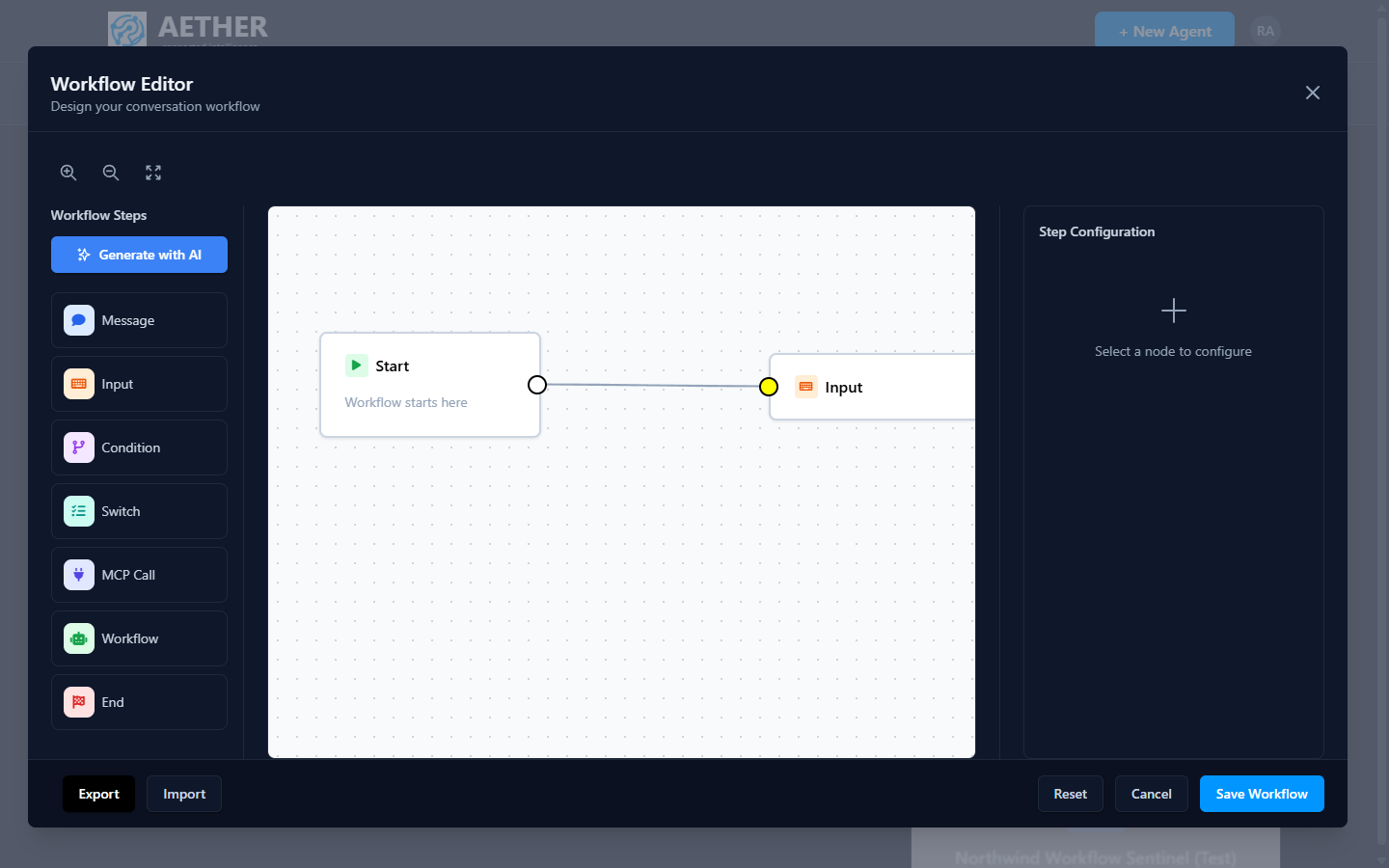
The editor
- Step palette (left) — drag steps onto the canvas: Message, Input, Condition, Switch, Decision, MCP Call, nested Workflow, and End. Generate with AI can scaffold a whole workflow from a description.
- Canvas (centre) — every workflow begins at the Start node. You connect nodes to define the order and branches of the conversation.
- Step Configuration (right) — select a node to edit its settings.
- Export / Import — move a workflow definition between agents or environments.
When to use a workflow
Reach for a workflow when you need predictability: the conversation must visit certain steps, gather specific inputs, or call a tool at an exact point. For open-ended assistance, a good system instruction plus knowledge and tools is often enough — the model decides the path.
Tip: Start with Generate with AI to get a first draft of the graph, then refine the steps and branches by hand.
Saving & status
When a workflow is configured, the Workflow tab shows its size (for example Configured (10 steps, 10 transitions)) and an Edit Workflow button. Changes apply to the Development environment until you publish or promote the agent.
Next steps
- Steps, Branching & Tools — what each step type does.
- Connecting MCP Tools — the tools an MCP Call step can invoke.