

Agent Configuration
Opening an agent from the Dashboard takes you to the agent builder — a tabbed editor where you shape everything about the agent. The Configuration tab holds its core identity and persona.
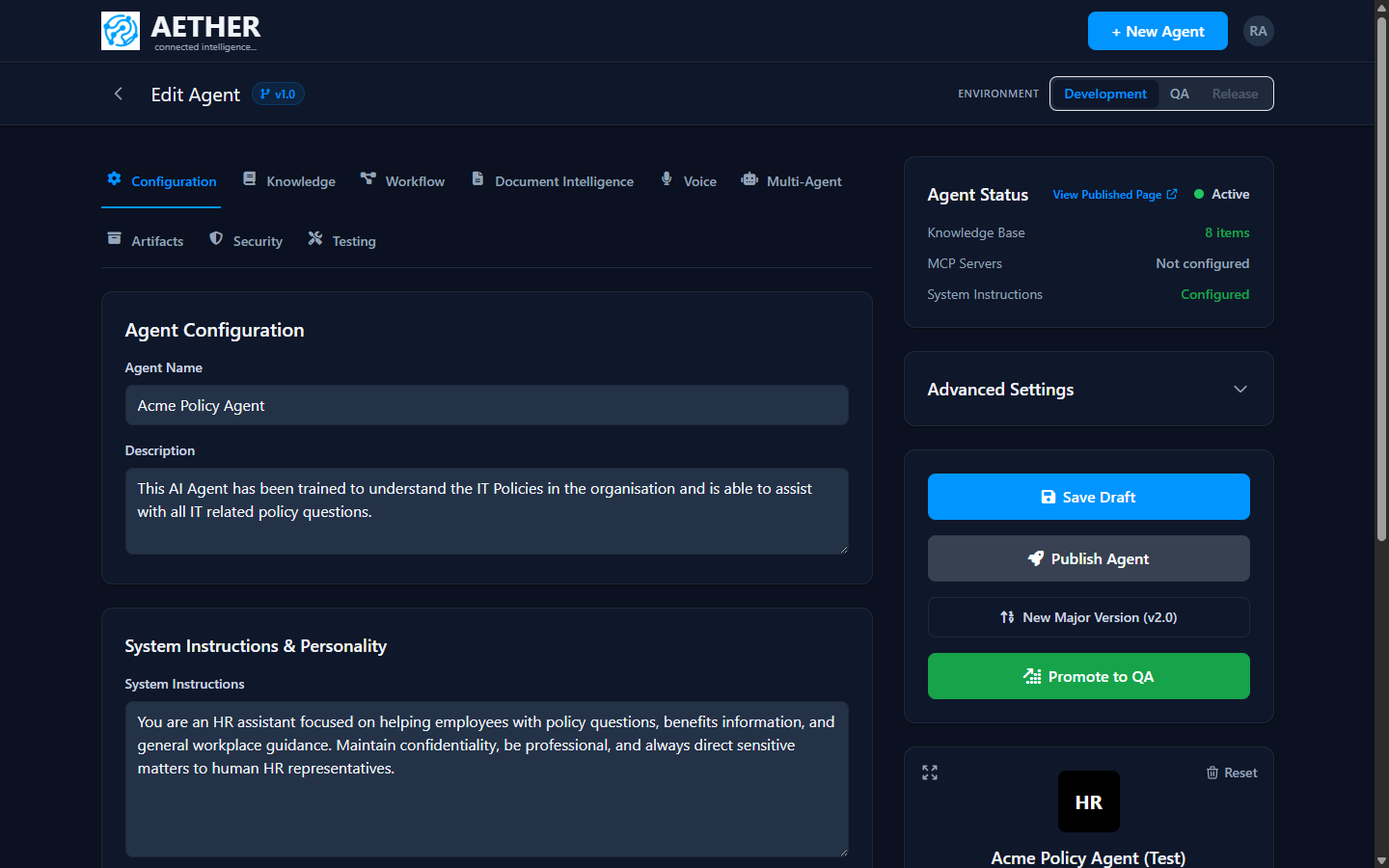
The builder at a glance
Across the top you'll find the editor tabs:
- Configuration — name, description, persona and personality (this page).
- Knowledge — attach documents and URLs (RAG). See Adding Knowledge Sources.
- Workflow — design guided conversations. See Workflow Designer.
- Document Intelligence, Voice, Multi-Agent, Artifacts — advanced capabilities.
- Security and Testing — guardrails and the test suite.
On the right, the Agent Status panel summarises the knowledge base, MCP servers and whether system instructions are set, and the Environment switcher (Development / QA / Release) shows which stage you're editing. The action buttons — Save Draft, Publish Agent, New Major Version, Promote — drive the lifecycle (see Publishing & Environments).
Configuration fields
| Field | Purpose |
|---|---|
| Agent Name | Display name shown to users and in the Dashboard. |
| Description | Short summary of what the agent does. |
| Category | Groups the agent for organisation and reporting. |
| Language | Primary response language. |
| Tone, Response Length, Creativity | Persona dials that shape how the agent replies. |
Set the persona dials to match the use case: a support agent might use a friendly tone, concise responses and low creativity; a brainstorming assistant might use higher creativity and longer responses.
Tip: Changes are saved to the Development environment until you promote them. Use Save Draft often — publishing is a separate, deliberate step.
Next steps
- System Instructions — the prompt that defines the agent's job.
- Appearance — avatar and branding.