

Web Embed Widget
The fastest way to put an agent in front of users is the embeddable chat widget — a small snippet you paste into any website. Configure it from an agent's Web Integration page.
Configure the look and behaviour
The Web Integration page has four tabs — Appearance, Behavior, Content, Get Code — with a live preview of the widget on a sample site.
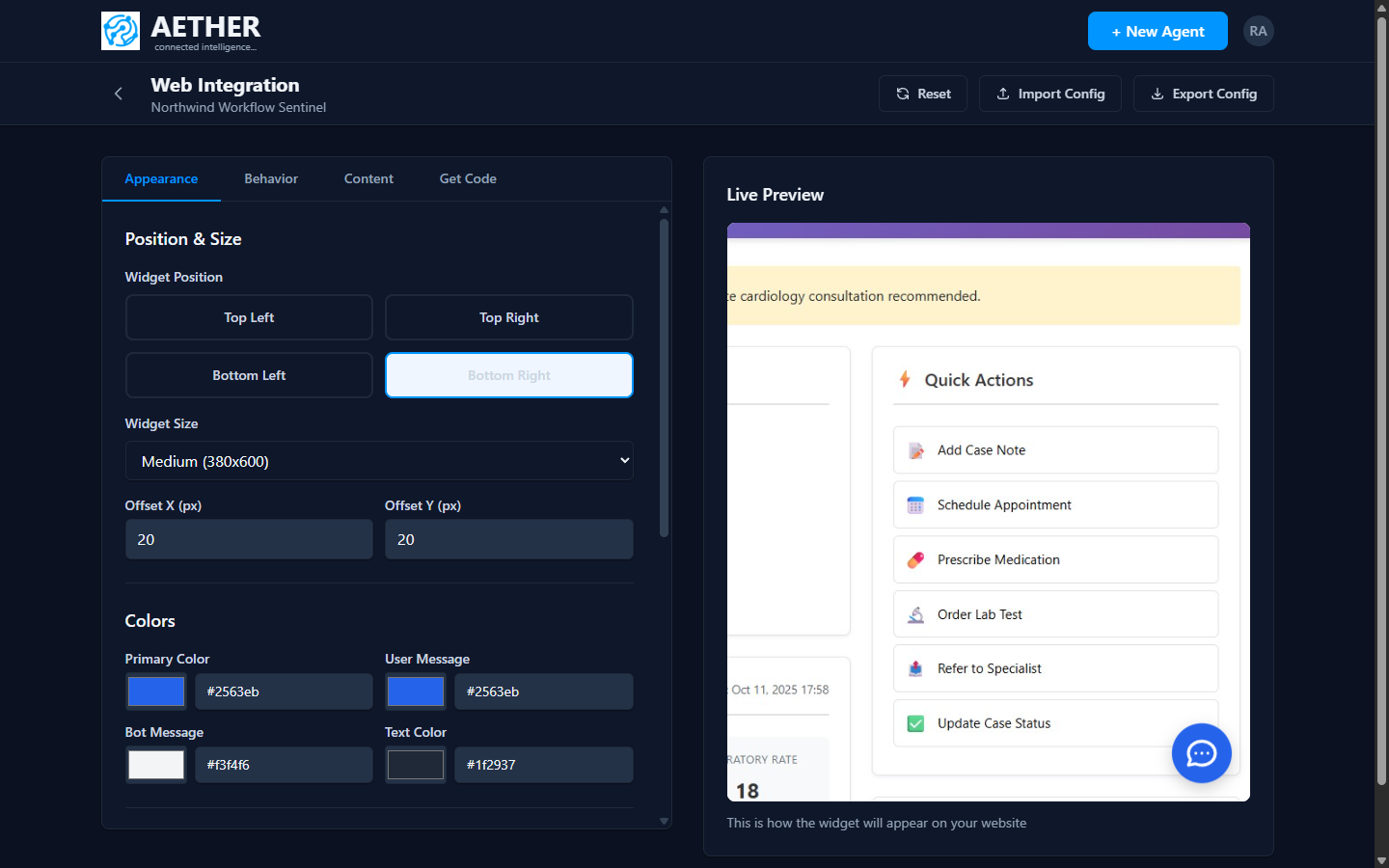
- Appearance — widget position (corner), size, and colours (primary, user/bot bubbles, text).
- Behavior — how and when the widget opens.
- Content — greeting and labels.
- Get Code — the ready-to-paste embed snippet.
Get the embed code
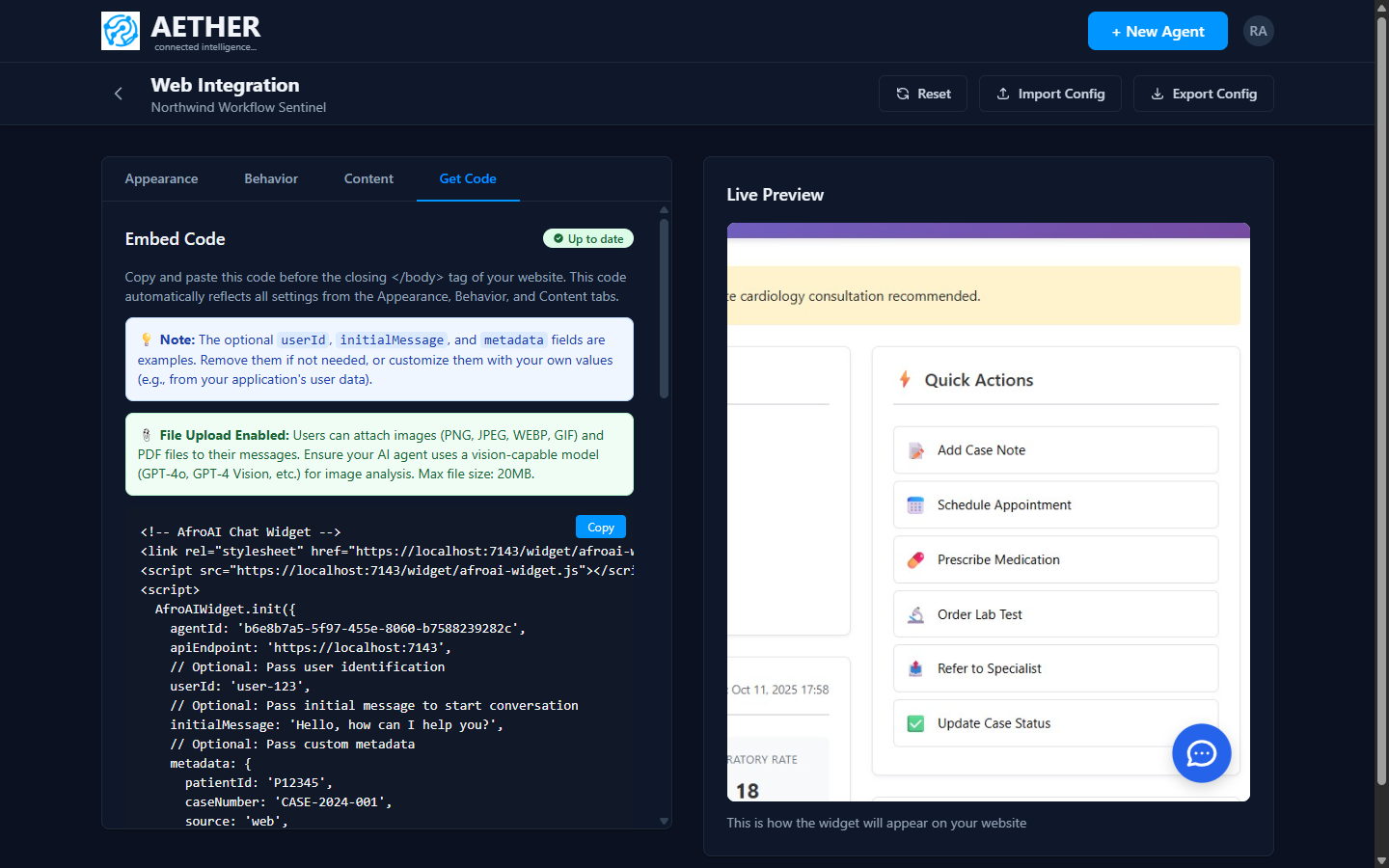
The Get Code tab generates a snippet that reflects all your settings. Paste it just before the
closing </body> tag of your site:
<!-- AETHER Chat Widget -->
<link rel="stylesheet" href="https://YOUR-HOST/widget/afroai-widget.css">
<script src="https://YOUR-HOST/widget/afroai-widget.js"></script>
<script>
  AfroAIWidget.init({
    agentId: 'YOUR-AGENT-ID',
    apiEndpoint: 'https://YOUR-HOST',
    // Optional:
    userId: 'user-123',                       // associate a user
    initialMessage: 'Hello, how can I help?', // custom greeting
    metadata: { source: 'web' }               // any context you want logged
  });
</script>
The userId, initialMessage and metadata fields are optional — remove or customise them with
your own application's data.
File uploads: When enabled, users can attach images (PNG/JPEG/WEBP/GIF) and PDFs to messages. Use a vision-capable model on the agent for image analysis.
Next steps
- Microsoft Teams — deploy into Teams instead of (or as well as) the web.
- REST Endpoints — integrate without the widget.