

Appearance
An agent's appearance controls how it looks wherever it's published — in the test preview, on its published page, and inside the embeddable web widget.
Avatar & colour
In the Configuration tab you choose:
- Avatar initials — a short label derived from the agent name, shown in the avatar badge.
- Background colour — the avatar's colour, picked from the palette. The live preview in the builder updates as you choose.
These same values flow through to the Dashboard list, the published page header, and the chat widget, so the agent feels consistent everywhere it appears.
Widget branding
When you embed the agent on a website, the Web Embed Widget exposes a fuller set of appearance controls — primary colour, user/bot message colours, text colour, widget position and size — with a live preview of how it will look on your site:
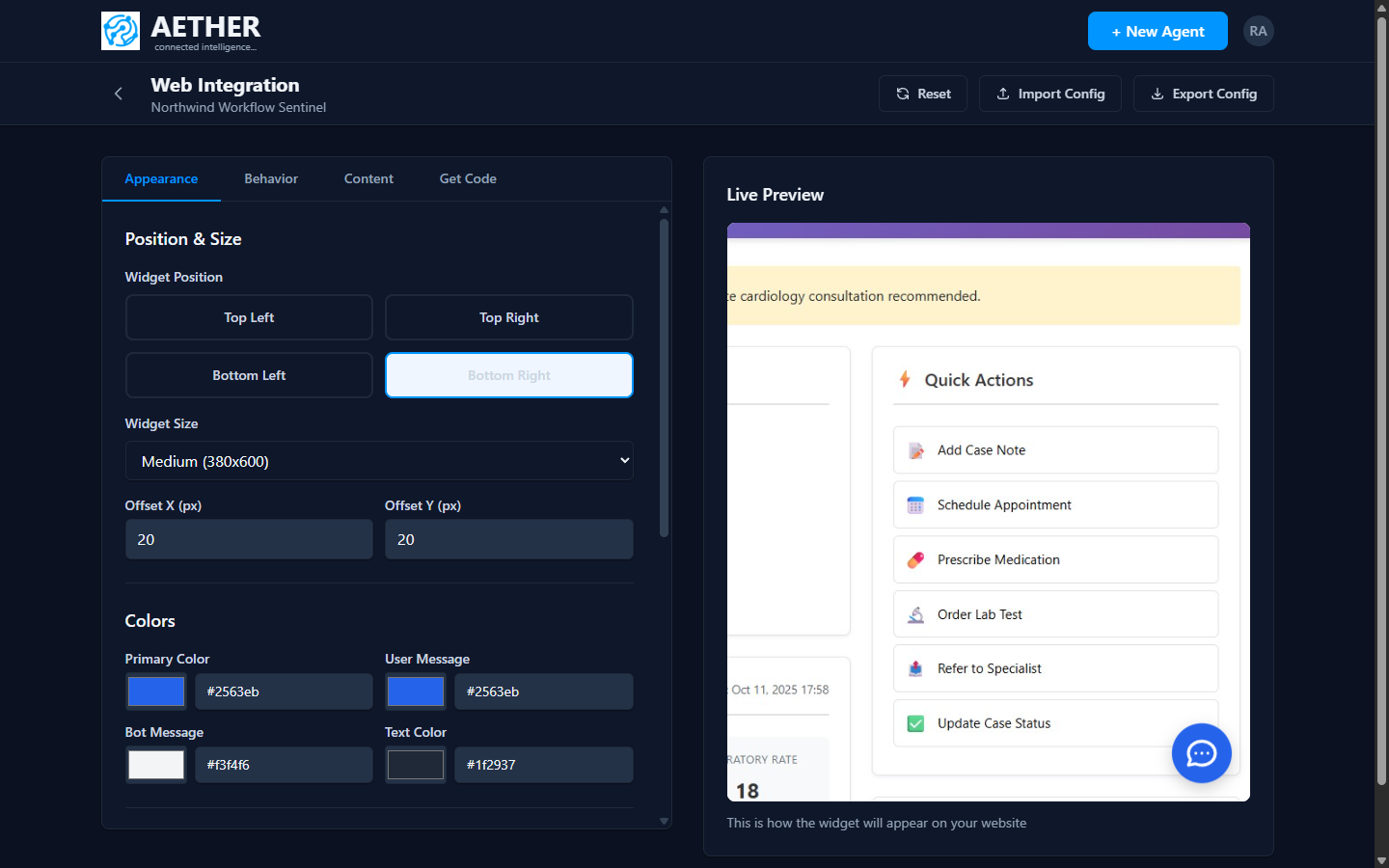
Tip: Keep the agent's avatar colour and the widget's primary colour aligned with your brand so the experience feels native to your product.
Next steps
- Adding Knowledge Sources — connect the agent to your data.
- Web Embed Widget — full widget styling and the embed snippet.